Widgets, Themes & Wallpapers for iPhone
Make the home screen yours.
- App Store name
- Widgets, Themes & Wallpapers
- Category
- Utilities
- Price
- Free · In-App Purchases
- Requires
- iOS 14.0+
- Languages
- 31
- On the App Store since
- 2025
- Last updated
- 2025
What it does for you
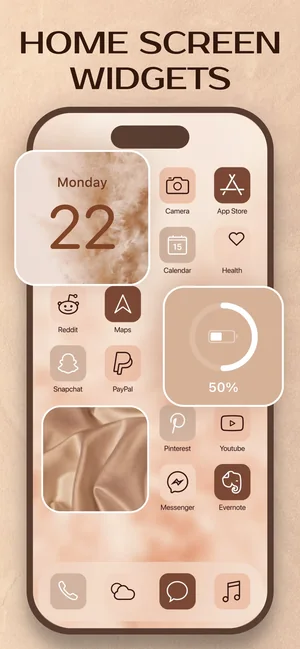
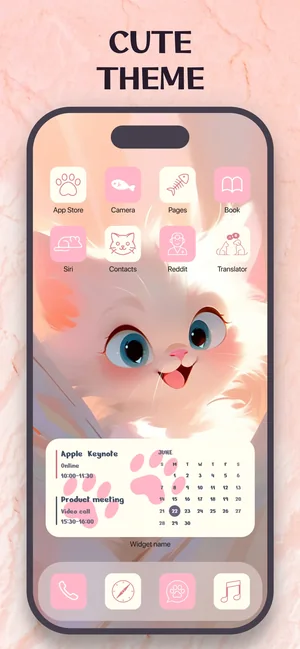
A phone that looks like its owner rather than like a demo unit. Theme packs pair matched widgets and wallpapers so the home and lock screens change character together instead of piece by piece.
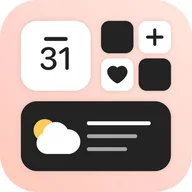
The widgets are useful as well as decorative — clock, weather, calendar and battery — each styled to sit with the pack you chose rather than clashing with it.
About this app
Widgets, Themes & Wallpapers makes a phone feel like its owner's. Theme packs pair matched widgets and wallpapers — from minimal to anime, cars and sport — so the whole screen changes character in one tap.
Practical widgets keep useful things close: weather, clock, calendar and battery on the lock or home screen, each in a style that fits the look you chose. An HD wallpaper collection finishes the picture.
Key features
- Matched theme packs: widgets plus wallpapers
- Clock, weather, calendar and battery widgets
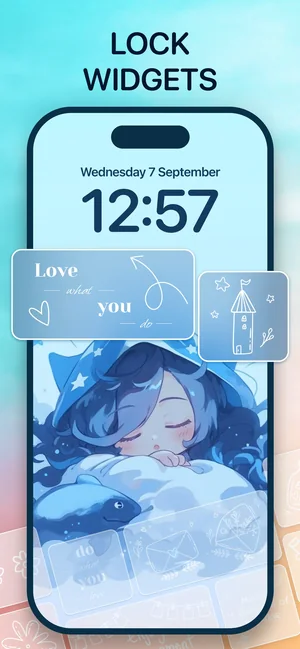
- Lock-screen and home-screen customisation
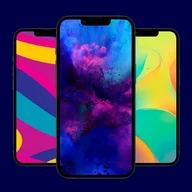
- HD wallpapers from minimal to anime
When people use it
One coherent look, not five mismatched pieces
The reason theme packs exist: widget, wallpaper and palette already agree with each other.
Useful things at a glance
Weather, clock, calendar and battery on the home or lock screen, in a style that matches the rest.
Changing the mood of the phone
Packs run from minimal to anime, cars and sport — swapping the pack changes the whole screen.
Lock screen as well as home screen
iOS lets both be customised, and the packs cover both.
How it works
Choose a theme pack
Pick the look; widgets and wallpaper come matched.
Save the wallpaper
Keep the pack's wallpaper to your photo library.
Set it in iOS Settings
Settings, Wallpaper, Add New Wallpaper, then choose it from Photos.
Add the widgets
Long-press the home screen, tap the plus, find this app in the widget list and pick a size.
Configure each widget
Long-press the placed widget and choose Edit Widget to pick which style from the pack it shows.
Good to know
- Placing widgets and setting wallpapers are iOS steps. No app can do them for you — the app supplies the content, iOS does the placing.
- iOS widgets refresh on a schedule the system controls, not on demand. A clock or weather widget can lag by a few minutes and that is iOS behaviour, not a fault of the app.
- This page does not claim custom app icons. Icon changes on iOS work through Shortcuts and behave differently from real icons; nothing here promises them.
- Widget sizes and lock-screen widget support depend on your iOS version and device.
Pricing and privacy
Free · In-App Purchases. Subscriptions and purchases are handled by Apple; you can review or cancel them in your Apple Account settings.
Privacy Policy · EULA · Support and refunds
Facts on this page come from the App Store listing and the app's own screens, and were last checked on . Something out of date? Tell us.
Questions about Widgets & Themes
How do I add a widget to my home screen?
Long-press an empty part of the home screen, tap the plus in the corner, find this app in the list and choose a size. Then long-press the placed widget and choose Edit Widget to pick the style.
Can I change my app icons too?
This page does not claim icon changing. On iOS custom icons are made with Shortcuts and behave differently from real app icons — worth knowing before you spend an evening on it.
Why does my clock or weather widget lag?
iOS decides when widgets refresh, to protect battery. A few minutes behind is normal system behaviour rather than a bug.
Does it customise the lock screen as well?
Yes — the packs cover lock-screen widgets and wallpaper as well as the home screen, subject to what your iOS version supports.