Guide
How to get text out of a photo on iPhone
For a snippet of text in a photograph, use Live Text: open the picture in Photos, press and hold on the words, and copy them like text on a web page — it is built into iOS and needs nothing installed. For a document you need to keep, search or export, run OCR in a scanner app instead, which recognises the whole page and stores the text with the file.
Live Text — for a phrase, an address or a code
Live Text reads words inside pictures on the phone itself. It is instant and it is free, and for grabbing a wifi password off a card or an address off a poster it is all you need.
Open the picture in Photos
Any photograph or screenshot containing printed text.
Press and hold on the text
The words highlight the way selectable text does. Drag the handles to take more or less.
Copy, look up or translate
The menu offers Copy, and depending on the content, Translate or a direct action such as calling a phone number.
Or point the camera at it
The same works live: open Camera, aim at the text, and tap the Live Text indicator in the corner to capture without taking a photograph.
OCR in a scanner app — for whole documents
Live Text works on what is on screen. It does not build a searchable file, it does not handle ten pages, and it does not export to Word. That is the difference between reading text and recognising a document.
Scan the page first
Capture with PDF Scan so edges are detected and the perspective is corrected — recognition is far more accurate on a straightened page than on a photograph taken at an angle.
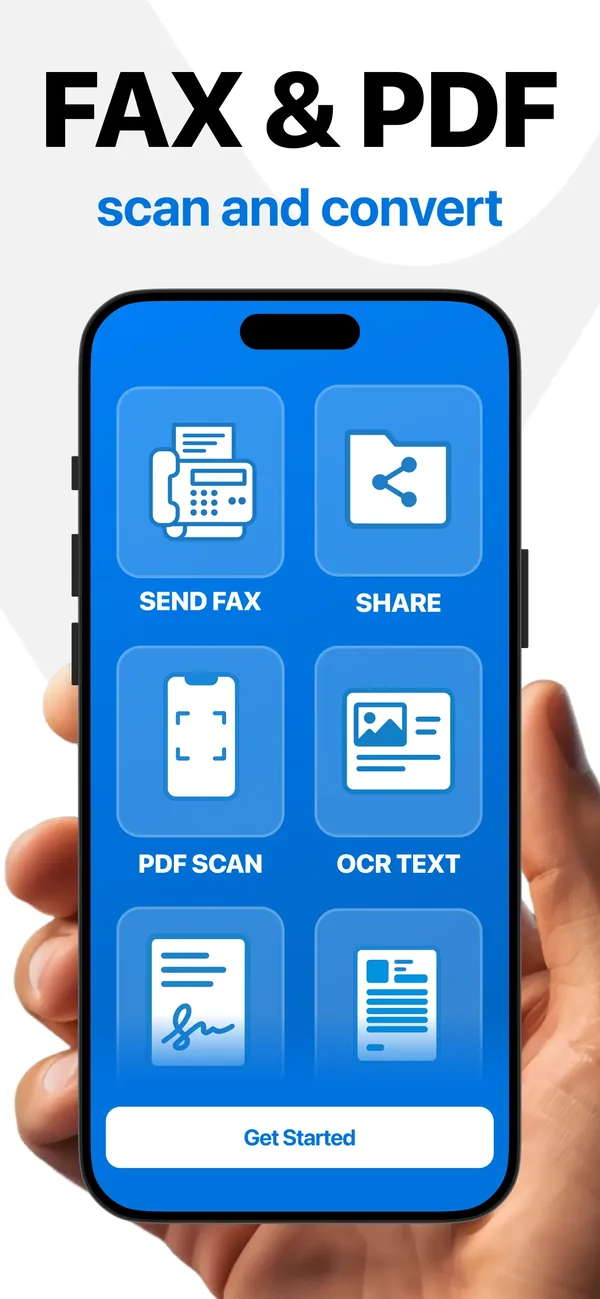
Run OCR Text
Recognition runs over the scan and attaches the text to the document.
Check the result
Read the recognised text against the page. Numbers, unusual names and anything in small print are where errors turn up.
Export it
Export as a searchable PDF to keep the layout, or as Word when the text has to be edited afterwards.
What makes recognition accurate — and what breaks it
- Printed type on flat, well-lit paper is what OCR is built for, and it reads it well.
- Handwriting is a different problem. Do not expect a handwritten note to come out reliably.
- Low contrast beats recognition: faded receipts, grey-on-grey design, watermarks under text.
- Skew and curl matter more than resolution. A straight page photographed at arm's length reads better than a crooked close-up.
- Columns, tables and forms can come out in the wrong reading order even when every word is correct — check the structure, not just the spelling.
- Always proofread anything you will rely on. OCR output is a draft, not a transcript.
Common questions
Does iPhone have OCR built in?
Yes — Live Text recognises text in photographs, screenshots and the camera view, and lets you copy or translate it. It works on what you are looking at, rather than producing a searchable document file.
Which iPhones support Live Text?
It arrived with iOS 15 on iPhone XS, XR and later, and the supported languages have grown since. If pressing and holding on text does nothing, check that Live Text is enabled in Settings under Camera or General, and that iOS is up to date.
How do I make a scanned PDF searchable?
Run OCR on the scan. Until text has been recognised, a scanned PDF is a picture of a page and searching inside it finds nothing.
Can I get a Word file out of a photograph?
Scan the page, run OCR, and export to Word. Complex layouts rarely survive the trip intact — expect to fix formatting.
Will it read handwriting?
Sometimes, and unreliably. Clear block capitals stand a chance; ordinary cursive does not. Do not use OCR output of handwriting without reading it against the original.
The app used in this guide

Appenvision publishes the app named in this guide. Where a step can be done with the tools already on your iPhone, that route is described first.
Sources
Official documentation for the system steps and for any general figure quoted. Product behaviour is described from the apps themselves; the sources below cover what is not ours to assert.
How this guide was put together
Written from the shipping iOS builds and the features visible in each app's own screens. Where a number or a behaviour could not be verified from the app or its App Store listing, it is not stated here.
System steps are described against current iOS as of the check date above, and app behaviour against the current App Store build. Exact iOS and app build numbers are added per release once the product team confirms them; where a behaviour depends on your own iOS version or settings, the guide says so rather than assuming.