Guide
How to use a font keyboard on iPhone — and what Full Access really means
Install the app, then add its keyboard in Settings, General, Keyboard, Keyboards, Add New Keyboard — iOS will not do this for you. While typing, hold the globe key to switch to it. Some features need Full Access, and iOS warns that a keyboard with Full Access can transmit everything you type: grant it deliberately, never type passwords or card numbers on any third-party keyboard, and switch back to the system keyboard for anything sensitive.
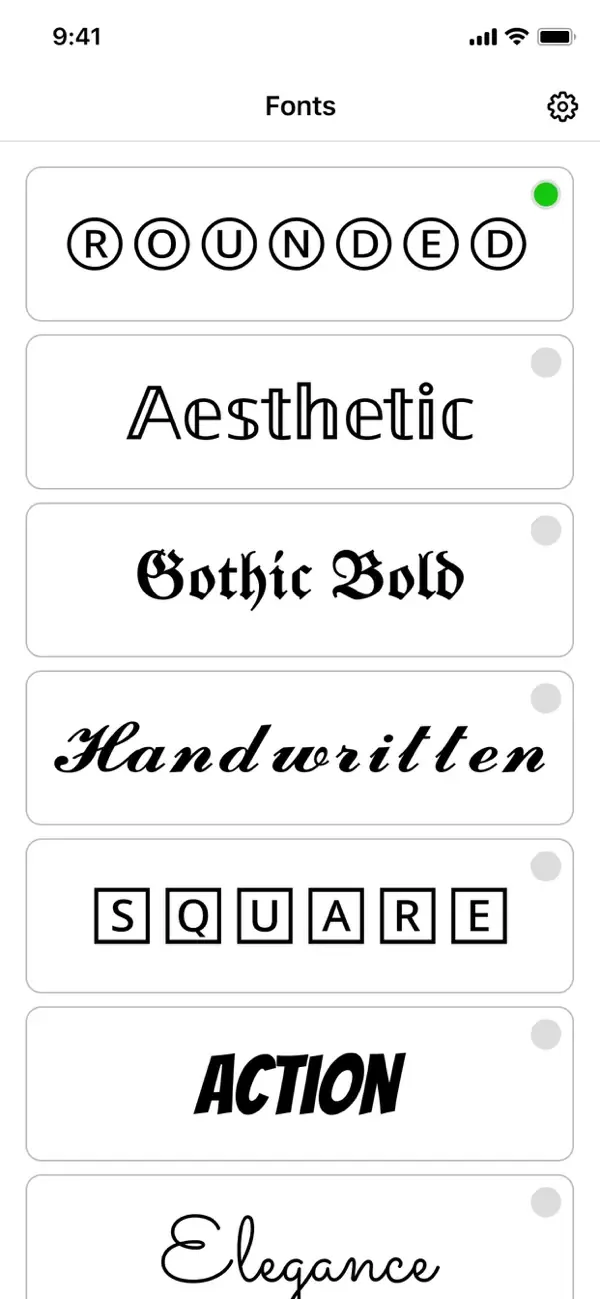
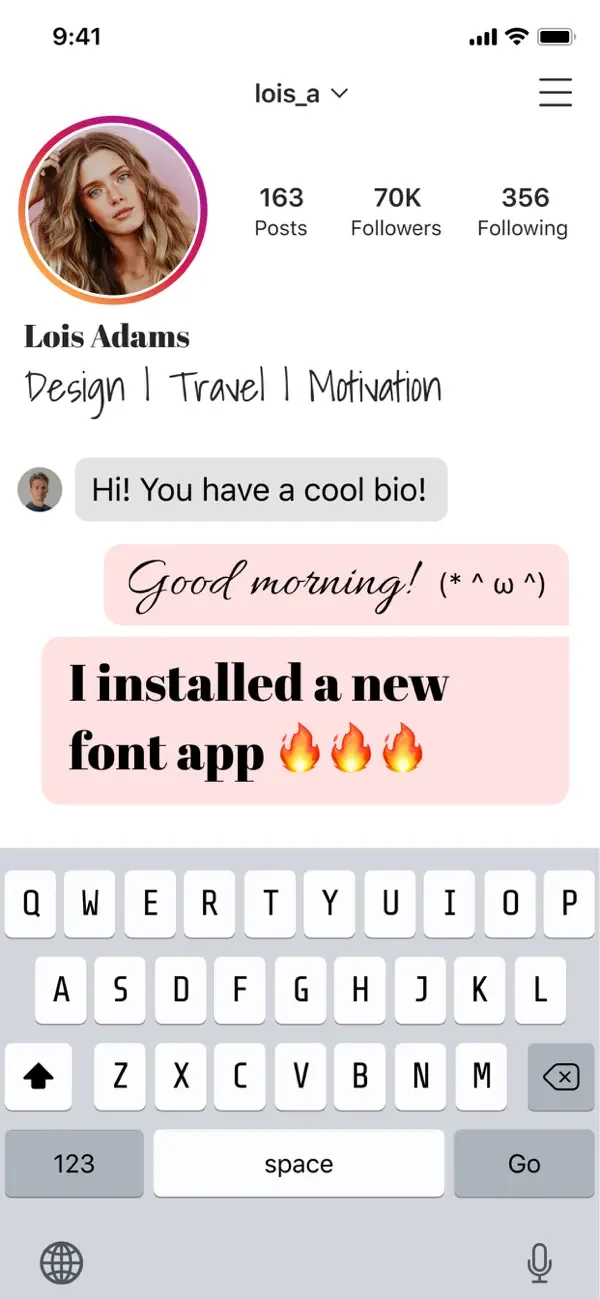
Add the keyboard
Installing the app is not enough — iOS keeps third-party keyboards switched off until you add them yourself.
Install the keyboard app
The keyboard ships inside it but is dormant.
Open Settings, General, Keyboard
Then tap Keyboards, and Add New Keyboard.
Pick it from Third-Party Keyboards
It now appears in the rotation when you type.
Switch while typing
Tap and hold the globe key on the keyboard and choose it from the list.
Full Access — read this before you tap Allow
This is the part worth slowing down for. iOS shows a blunt warning, and the warning is accurate: a keyboard with Full Access can send what you type to the developer's servers.
That permission exists for legitimate reasons — syncing settings, fetching content, features that need a network. But you are extending trust, so extend it knowingly.
- Many basic font features work without Full Access. Try the keyboard without it first and see what you actually miss.
- Never type a password, a card number, a PIN or a recovery phrase on any third-party keyboard. Switch to the system keyboard with the globe key first.
- iOS uses the secure system keyboard automatically in password fields — do not defeat that by switching away from it.
- You can revoke Full Access at any time: Settings, General, Keyboard, Keyboards, tap the keyboard, turn Full Access off.
- This applies to every third-party keyboard, not only this one. It is how iOS works.
Why styled text sometimes breaks
A font keyboard does not install a font. It types different Unicode characters that happen to look like styled letters — mathematical alphanumeric symbols and similar blocks. That single fact explains almost every problem people hit.
- Copy and paste works anywhere, because the characters travel with the text. That is the upside.
- Boxes or question marks appear when the receiving app, device or font does not include those characters.
- Screen readers may read styled text character by character, or skip it. That is an accessibility cost, so keep it out of anything that must be read.
- Search and autocorrect often do not treat styled characters as the words they resemble.
- Some platforms strip or normalise them in usernames and searchable fields.
- Test in the app you actually intend to post to before you leave styled text somewhere that matters.
If the keyboard is not working
- The keyboard does not appear: re-add it in Settings, General, Keyboard, Keyboards, and check it is listed there.
- The globe key is missing: it appears once more than one keyboard is installed.
- A feature does nothing: it may be one of the ones that needs Full Access.
- Nothing works in a password field: that is deliberate. iOS forces its own secure keyboard there.
Common questions
Is it safe to give a keyboard Full Access?
It is a real trust decision. iOS warns that a keyboard with Full Access can transmit what you type, and that is accurate for any third-party keyboard. Grant it only if you accept that, never type secrets on a third-party keyboard, and remember you can turn it off again in Settings at any time.
How do I add a third-party keyboard on iPhone?
Settings, General, Keyboard, Keyboards, Add New Keyboard, then pick it under Third-Party Keyboards. While typing, hold the globe key to switch.
Why do my styled fonts appear as boxes to other people?
Because they are Unicode characters, not a font. If the receiving app or device does not have those characters, it shows a fallback box. Test in the destination app before relying on it.
Can I use a font keyboard for my Instagram bio?
Yes, that is the most common use, and social bios generally render styled characters. Support is per-platform, so check how yours looks after saving.
How do I remove a keyboard?
Settings, General, Keyboard, Keyboards, swipe left on it and delete. Deleting the app removes its keyboard too.
The app used in this guide
Appenvision publishes the app named in this guide. Where a step can be done with the tools already on your iPhone, that route is described first.
Sources
Official documentation for the system steps and for any general figure quoted. Product behaviour is described from the apps themselves; the sources below cover what is not ours to assert.
How this guide was put together
Written from the shipping iOS builds and the features visible in each app's own screens. Where a number or a behaviour could not be verified from the app or its App Store listing, it is not stated here.
System steps are described against current iOS as of the check date above, and app behaviour against the current App Store build. Exact iOS and app build numbers are added per release once the product team confirms them; where a behaviour depends on your own iOS version or settings, the guide says so rather than assuming.