Guide
How to use an iPhone as a TV remote
An iPhone can control a smart TV over Wi-Fi when both are on the same network — Apple TV and AirPlay sets work through the built-in Remote in Control Centre, and other brands need the manufacturer's app or a universal remote app. What an iPhone cannot do is replace an infrared remote: it has no IR transmitter, so a television with no network connection cannot be controlled from it at all, whatever any app promises.
Start with compatibility, not with an app
This is the step that decides whether anything else will work, and it is the one people skip.
- Smart TV on your Wi-Fi: yes, this can be controlled from a phone.
- Apple TV, or a television that supports AirPlay: use the Remote already built into iOS — swipe into Control Centre and add the Apple TV Remote control. No download needed.
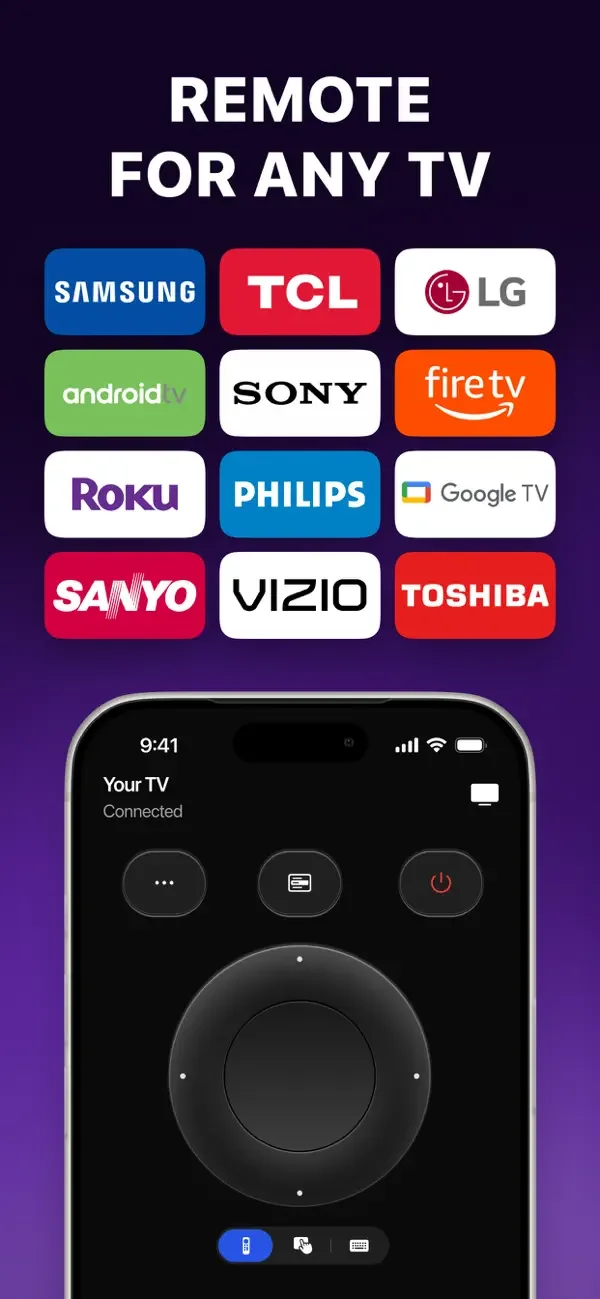
- Samsung, LG, Sony, Roku, Philips, Toshiba and other network-capable sets: the manufacturer's own app or a universal remote app.
- A television with no network connection: no iPhone app can control it. Modern iPhones have no infrared transmitter, so infrared is not an option at any price.
- Uncertain? Check whether your set appears on your home network at all. If it cannot join Wi-Fi, it cannot be controlled this way.
Connect and pair
Put both on the same Wi-Fi
Not the guest network, and turn off any VPN on the phone. This single requirement causes most failures.
Let the app scan
It looks for compatible televisions on the network and lists what it finds.
Confirm on the television
Most sets show a prompt or a PIN on screen the first time. Accept it with the physical remote if you still have one, or with the on-screen keyboard the TV offers.
Use it
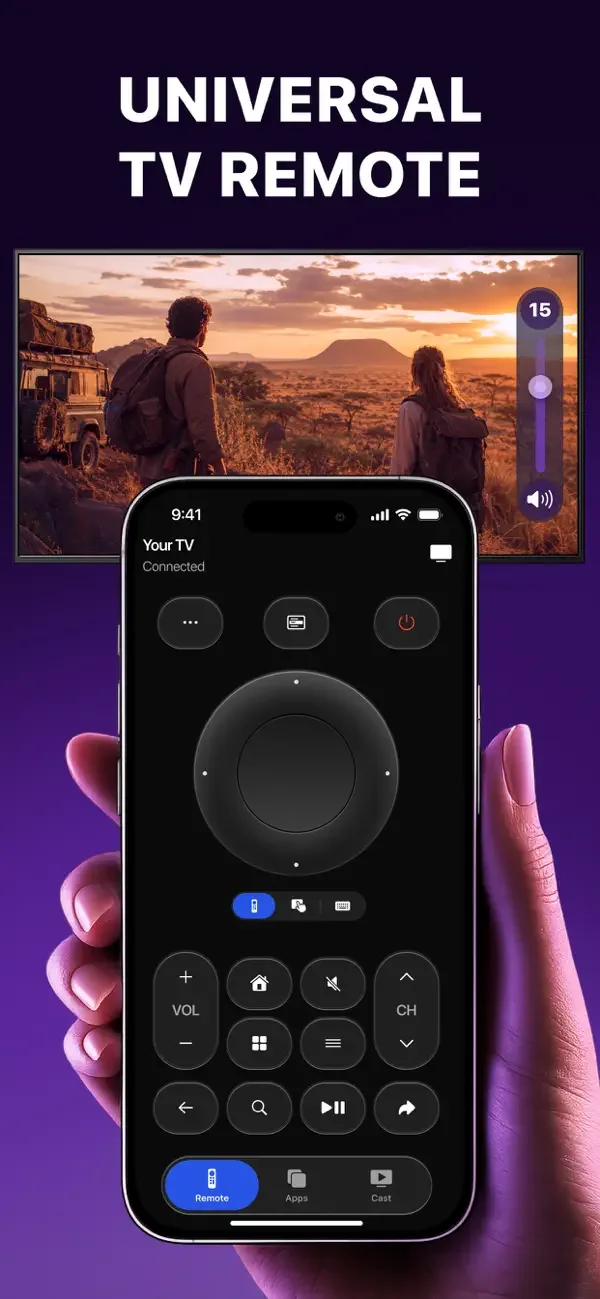
Directional pad, volume, playback and menu navigation from the phone; the app launcher opens TV apps directly.
When the app cannot find the TV
- Same network? Check the exact network name on both devices. Many routers publish separate 2.4 GHz and 5 GHz names, and some keep clients isolated from each other.
- Guest network: guest networks deliberately block device-to-device traffic. Move the phone to the main one.
- VPN on the phone: turn it off. A VPN routes traffic away from the local network and discovery fails.
- AP isolation or client isolation in the router settings: this blocks exactly this kind of discovery.
- TV in standby rather than on: some sets drop off the network entirely when off.
- iOS local network permission: the app needs it. Check Settings, Privacy & Security, Local Network.
Casting is not mirroring
These get confused constantly, and they behave differently.
Casting sends a specific photo or video to the television, which then plays it itself — the phone can be used for something else. Mirroring copies the whole phone display to the screen in real time, which is what AirPlay Screen Mirroring does on compatible sets. A remote app that casts photos and video is not necessarily a mirroring tool, and this guide does not claim it is.
Common questions
Can my iPhone replace a lost TV remote?
For a smart TV on your Wi-Fi, yes — an app gives you the directional pad, volume and playback. For an older television with no network connection, no: modern iPhones have no infrared transmitter, so nothing can control it directly.
Which TVs work with an iPhone remote?
Network-capable smart TVs. Apple TV and AirPlay sets work with the Remote built into Control Centre; Samsung, LG, Sony, Roku, Philips and Toshiba sets generally work through their own or a universal app. Support varies by model and firmware, so test with your own.
Why can't the app find my TV?
Almost always the network: different Wi-Fi bands or a guest network, a VPN on the phone, client isolation in the router, the TV in standby, or the app not having iOS Local Network permission. Work through those in order.
Does an iPhone have an infrared blaster?
No. No current iPhone has one, which is why every iPhone remote app works over the network rather than by pointing the phone at the television.
What is the difference between casting and mirroring?
Casting sends one photo or video to the TV, which plays it while your phone is free for something else. Mirroring shows your entire phone screen on the TV in real time. They are different features and not every app does both.
The app used in this guide
Appenvision publishes the app named in this guide. Where a step can be done with the tools already on your iPhone, that route is described first.
Sources
Official documentation for the system steps and for any general figure quoted. Product behaviour is described from the apps themselves; the sources below cover what is not ours to assert.
How this guide was put together
Written from the shipping iOS builds and the features visible in each app's own screens. Where a number or a behaviour could not be verified from the app or its App Store listing, it is not stated here.
System steps are described against current iOS as of the check date above, and app behaviour against the current App Store build. Exact iOS and app build numbers are added per release once the product team confirms them; where a behaviour depends on your own iOS version or settings, the guide says so rather than assuming.