Guide
How to see every device on your WiFi from an iPhone
There are two ways to see what is on your Wi-Fi from an iPhone. Open your router's admin page in Safari — the address is usually printed on the router — and look for a connected-devices or DHCP client list; or run a LAN scan from a network app, which walks the network and lists every device it finds with its IP address. The router's own list is the authoritative one; a scanner is faster and works without the admin password.
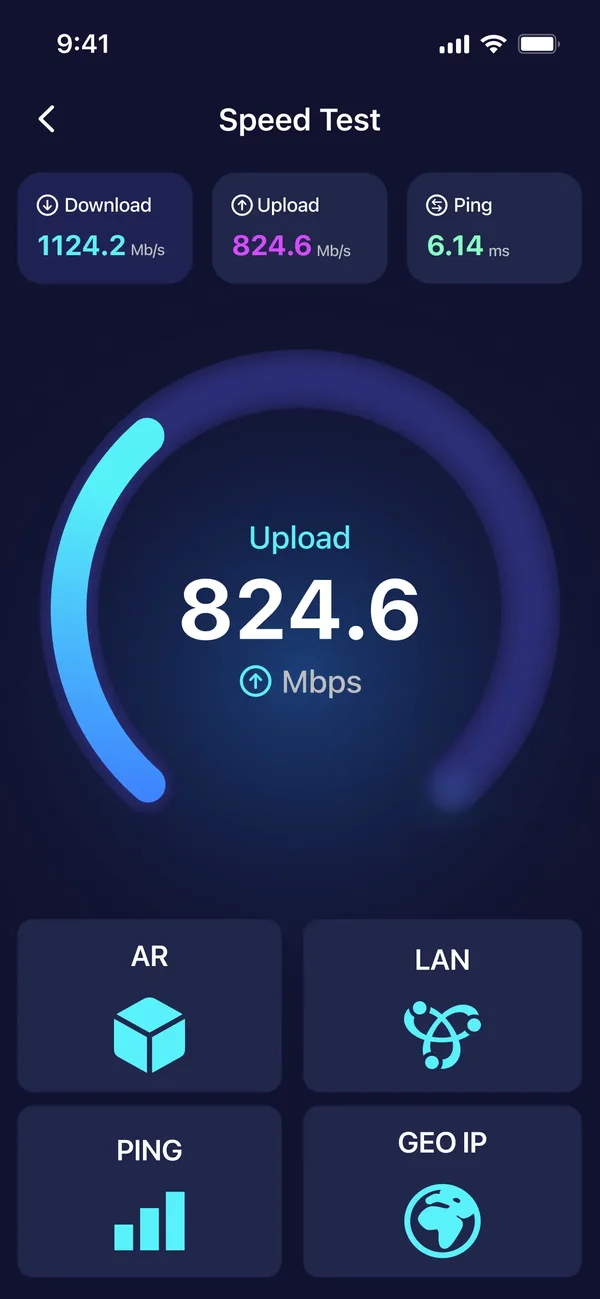
Method 1 — ask the router
The router hands out the addresses on the network, so its list is normally the most complete one. It is not infallible: entries can be stale for devices that have already left, and some routers only refresh the list periodically.
Find the router's address
It is usually printed on a label on the router itself — commonly 192.168.0.1 or 192.168.1.1. On the iPhone you can also open Settings, Wi-Fi, tap the (i) next to your network, and read the Router field.
Open it in Safari
Type the address into the address bar. You will be asked for the admin username and password — also usually on the label, unless it was changed.
Find the device list
Look for Connected Devices, Attached Devices, DHCP Clients or similar. Every router names it differently.
Read the list
Each entry has a name, an IP address and a MAC address. The MAC address identifies a network interface rather than a person, and it is no longer a reliable device fingerprint: iPhones and most other modern phones use a private, randomised MAC address per network by default, so the same phone can appear under different addresses on different networks.
Method 2 — scan the network from the phone
A LAN scan works from the phone alone, needs no admin password, and is quicker when you just want to know how many things are connected right now.
Join the Wi-Fi you want to inspect
A scanner can only see the network the phone is actually on.
Run the LAN scan
Open the LAN tool and start the scan; it walks the address range and lists what answers.
Read what comes back
Results show each device's IP address, and often the hardware vendor, which is frequently enough to recognise a printer, a TV or a smart plug.
Dig into anything strange
Traceroute and open-port checks in the same app tell you more about a device you cannot place.
Identifying what you found
- Count first. Phones, laptops, tablets, TV, console, speakers, thermostat, doorbell, printer, plugs and bulbs — a normal home reaches twenty or thirty devices quickly.
- The vendor name in a scan is the strongest clue: 'Amazon' is an Echo, 'Espressif' is almost always a cheap smart plug or bulb.
- Turn a suspect device off at the wall and rescan. Whatever disappeared is what it was.
- Guest networks show separately on many routers — check both lists before worrying.
- A device you cannot identify is more often a forgotten gadget than an intruder. Rule that out first.
If something really is not yours
- Change the Wi-Fi password. Everything is kicked off and only what you re-admit comes back — this alone resolves most cases.
- Check the encryption setting while you are there. WPA2 at minimum, WPA3 if the router offers it. An open or WEP network should be fixed today.
- Change the router's admin password too, if it is still the one on the label.
- Turn off WPS. Its PIN mode has been broken for years.
- Keep the router's firmware updated; unpatched routers are a standing target.
- MAC filtering is not the safety net it looks like — addresses can be changed. A strong password is what actually protects the network.
What a scan cannot tell you
- It sees devices that are awake and answering. Anything asleep at that moment is simply absent from the list.
- It reports addresses and vendors, not what a device is doing or what it sends.
- Only scan networks you own or administer. Scanning someone else's network is not a neutral act.
Common questions
Can I see connected devices without the router password?
Yes — a LAN scan from the phone lists what is answering on the network without any admin access. The router's own list is normally more complete, but it needs the password — and it can still show stale entries.
Why does the list show more devices than I own?
Modern homes are full of them: every bulb, plug, speaker, TV and thermostat takes an address, and some devices appear twice if they use both Wi-Fi and a wired connection. Count the gadgets before assuming an intruder.
How can I tell what an unknown device is?
Start with the vendor name in the scan, then switch the suspect off and rescan — whatever vanished is the device. The router's list adds a MAC address, but treat it as a hint rather than proof: private, randomised MAC addresses are the default on modern phones, so the address you see may not be the hardware's own.
Does someone on my WiFi slow it down?
Only while they are actually transferring data. A dozen idle smart plugs cost nothing; one device streaming 4K or backing up is what you notice.
Is scanning my own network legal?
Scanning a network you own or administer is ordinary maintenance. Scanning networks belonging to other people is not, and this guide is only about your own.
The app used in this guide

Appenvision publishes the app named in this guide. Where a step can be done with the tools already on your iPhone, that route is described first.
Sources
Official documentation for the system steps and for any general figure quoted. Product behaviour is described from the apps themselves; the sources below cover what is not ours to assert.
How this guide was put together
Written from the shipping iOS builds and the features visible in each app's own screens. Where a number or a behaviour could not be verified from the app or its App Store listing, it is not stated here.
System steps are described against current iOS as of the check date above, and app behaviour against the current App Store build. Exact iOS and app build numbers are added per release once the product team confirms them; where a behaviour depends on your own iOS version or settings, the guide says so rather than assuming.
Read next
- How to test your internet speed on iPhone Run a speed test on iPhone properly: what download, upload and ping actually mean, how to avoid the mistakes that produce a wrong number, and what speed you really need.
- How to use an iPhone as a TV remote Which televisions an iPhone can and cannot control, why there is no infrared option, how to fix a TV the app will not find, and the difference between casting and mirroring.